

What’s Supported
Supported actions
- Read Actions, including full historic backfill and incremental reads.
- Write Actions.
- Proxy Actions, using the base URL
https://quickbooks.api.intuit.com.
Supported Objects
The QuickBooks connector supports reading from and writing to the following objects:- account
- attachable
- bill
- billPayment
- budget
- class
- companyCurrency
- creditMemo
- creditCardPayment
- customer
- department
- deposit
- employee
- estimate
- invoice
- item
- journalCode
- journalEntry
- payment
- paymentMethod
- purchase
- purchaseOrder
- recurringTransaction
- refundReceipt
- salesReceipt
- taxAgency
- term
- timeActivity
- transfer
- vendor
- vendorCredit
Example Integration
For an example manifest file of a quickbooks integration, visit our samples repo on Github.Before you get started
You’ll need a QuickBooks account and will need to create a QuickBooks app to obtain the necessary OAuth2 credentials.Creating a QuickBooks App
- Go to the Intuit Developer Dashboard
- Sign in with your Intuit account or create one if needed
- Click Create an app
- Choose QuickBooks Online Accounting API
- Provide your app details:
- App name: Choose a descriptive name for your app
- Description: Brief description of your integration
- Click Create app
- Once created, navigate to the Keys & OAuth tab
- Note down your:
- Client ID
- Client Secret
- Under Redirect URIs, add:
https://api.withampersand.com/callbacks/v1/oauth
com.intuit.quickbooks.accounting- Full access to accounting datacom.intuit.quickbooks.payment- Access to payment data
Add your QuickBooks app info to Ampersand
- Log in to your Ampersand Dashboard.
-
Select the project where you want to create a QuickBooks integration.

- Select Provider apps.
- Select QuickBooks from the Provider list.
- Enter the previously obtained Client ID in the Client ID field and the Client Secret in the Client Secret field.
-
Enter the scopes required for your application in Scopes.
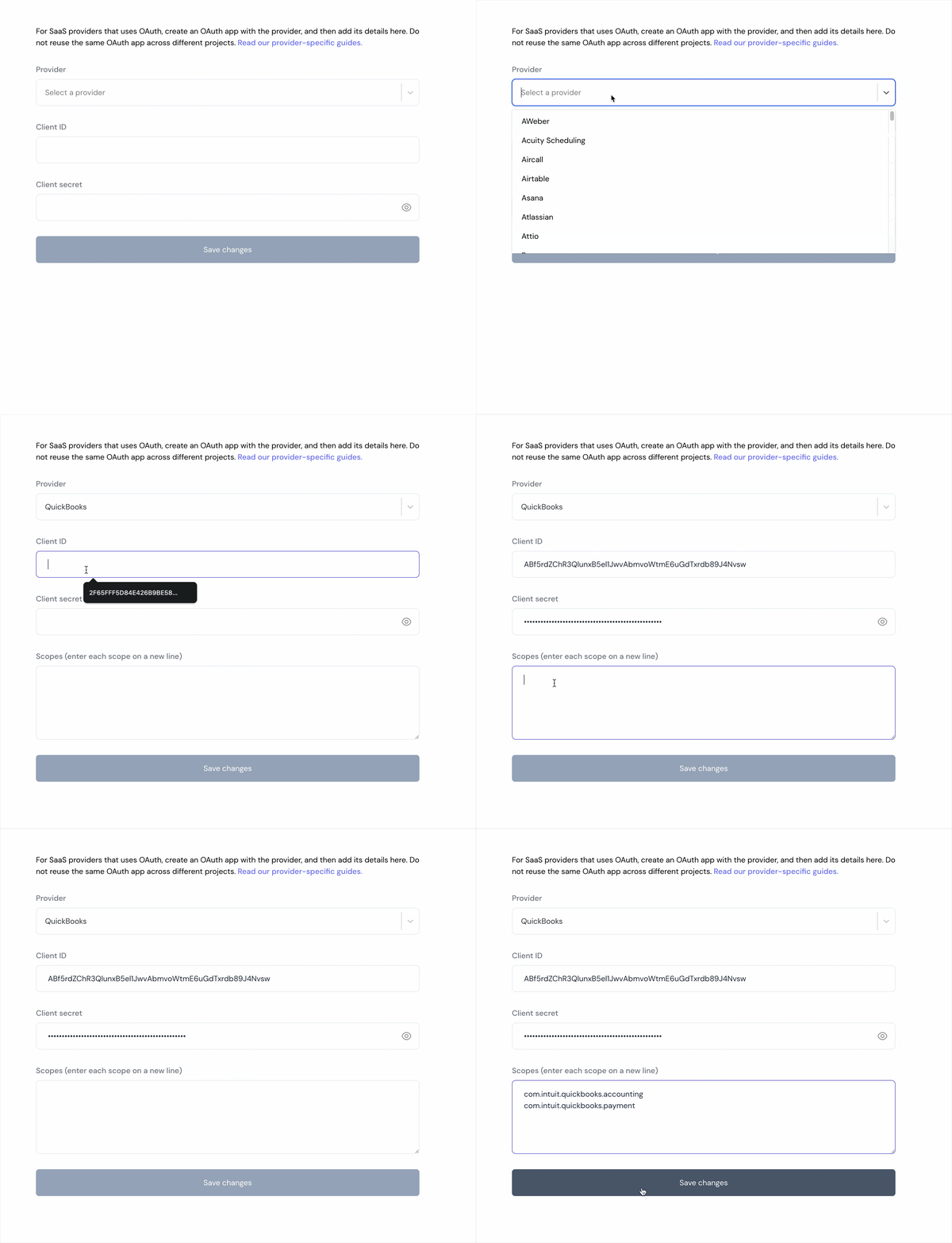
- Click Save Changes.
Using the connector
To start integrating with Kit:- Create a manifest file as shown in the example above.
- Deploy it using the amp CLI.
- Embed the InstallIntegration UI component.
- Start using the connector!
- If your integration has Proxy Actions, you can start making Proxy API calls.
QuickBooks API returns XML responses by default. To receive JSON responses, make sure to set the
Accept header to application/json in your proxy API calls.